How to
1
Your starting point
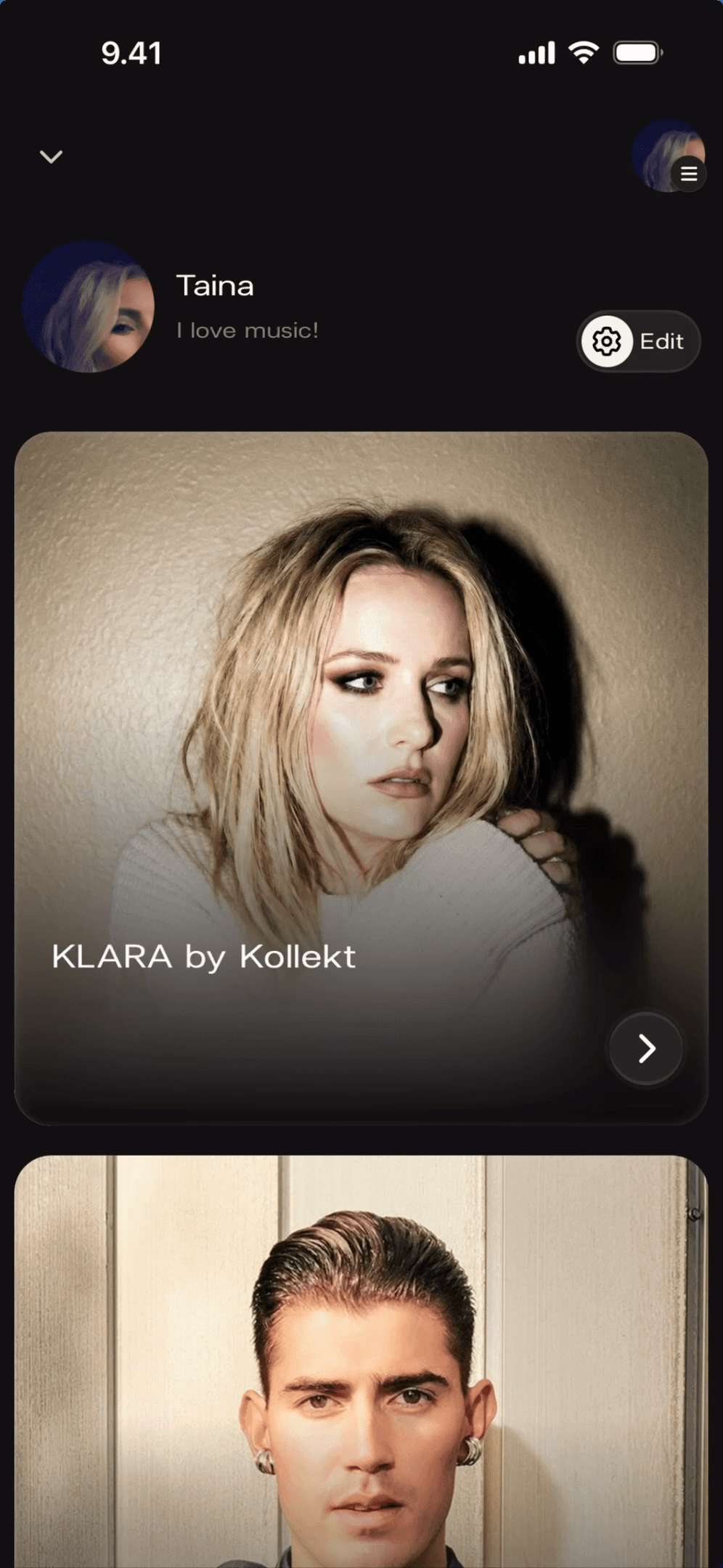
This is what you see when you open Kollekt. Your username and bio show at the top of the screen. To start editing, tap Edit in the top right corner.
Your username and bio are visible to other fans in the community
The Edit button sits in the top right, next to the settings icon
Tapping Edit opens your personal profile editor
1
Your starting point
This is what you see when you open Kollekt. Your username and bio show at the top of the screen. To start editing, tap Edit in the top right corner.
Your username and bio are visible to other fans in the community
The Edit button sits in the top right, next to the settings icon
Tapping Edit opens your personal profile editor
2
Fill in your details
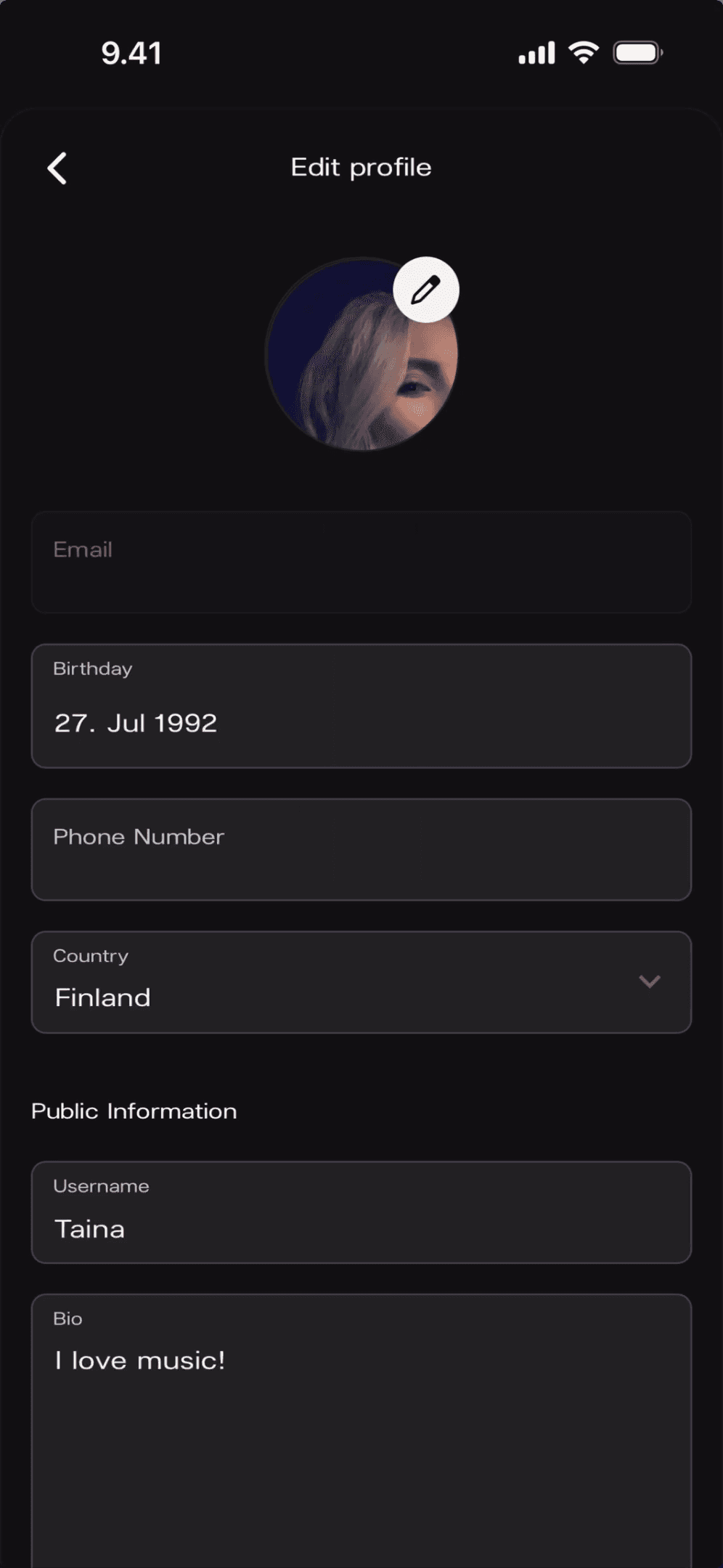
The Edit profile screen shows everything you can update. Your email is already filled in. Add your birthday, phone number, and country if you like — or leave them blank. Your username and bio are visible to other fans.
Username starts as kollekt-something — tap it to make it yours
Bio is public — a sentence or two is plenty
Birthday, phone number, and country are all optional
2
Fill in your details
The Edit profile screen shows everything you can update. Your email is already filled in. Add your birthday, phone number, and country if you like — or leave them blank. Your username and bio are visible to other fans.
Username starts as kollekt-something — tap it to make it yours
Bio is public — a sentence or two is plenty
Birthday, phone number, and country are all optional
3
Add a profile picture
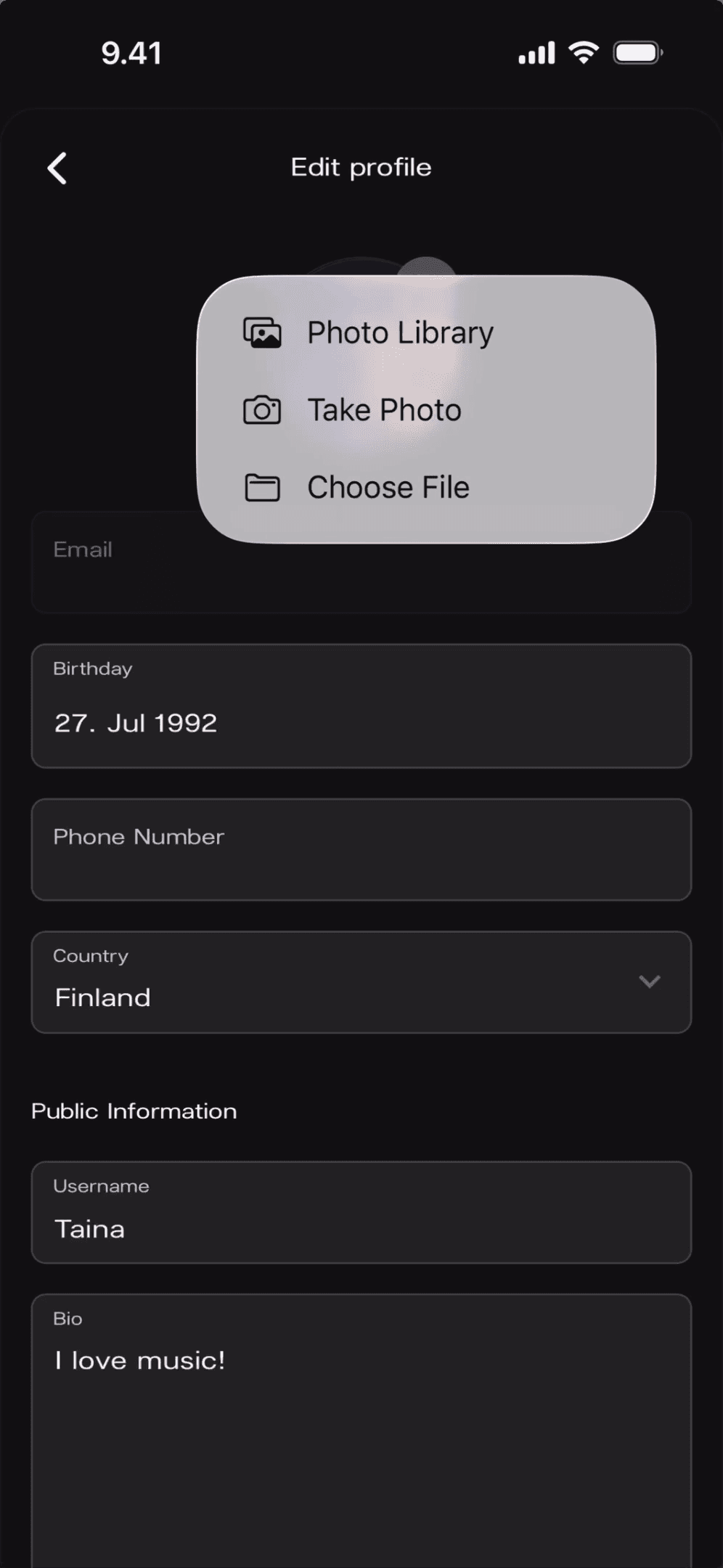
Tap the pen icon on your profile photo. A menu appears with three options. Choose Photo Library to pick from your camera roll, Take Photo to shoot a new one, or Choose File to upload an image.
Tap the pen icon on your current photo (or the empty circle if you haven't added one yet)
Choose Photo Library, Take Photo, or Choose File
Your new photo appears on your profile straight away
3
Add a profile picture
Tap the pen icon on your profile photo. A menu appears with three options. Choose Photo Library to pick from your camera roll, Take Photo to shoot a new one, or Choose File to upload an image.
Tap the pen icon on your current photo (or the empty circle if you haven't added one yet)
Choose Photo Library, Take Photo, or Choose File
Your new photo appears on your profile straight away
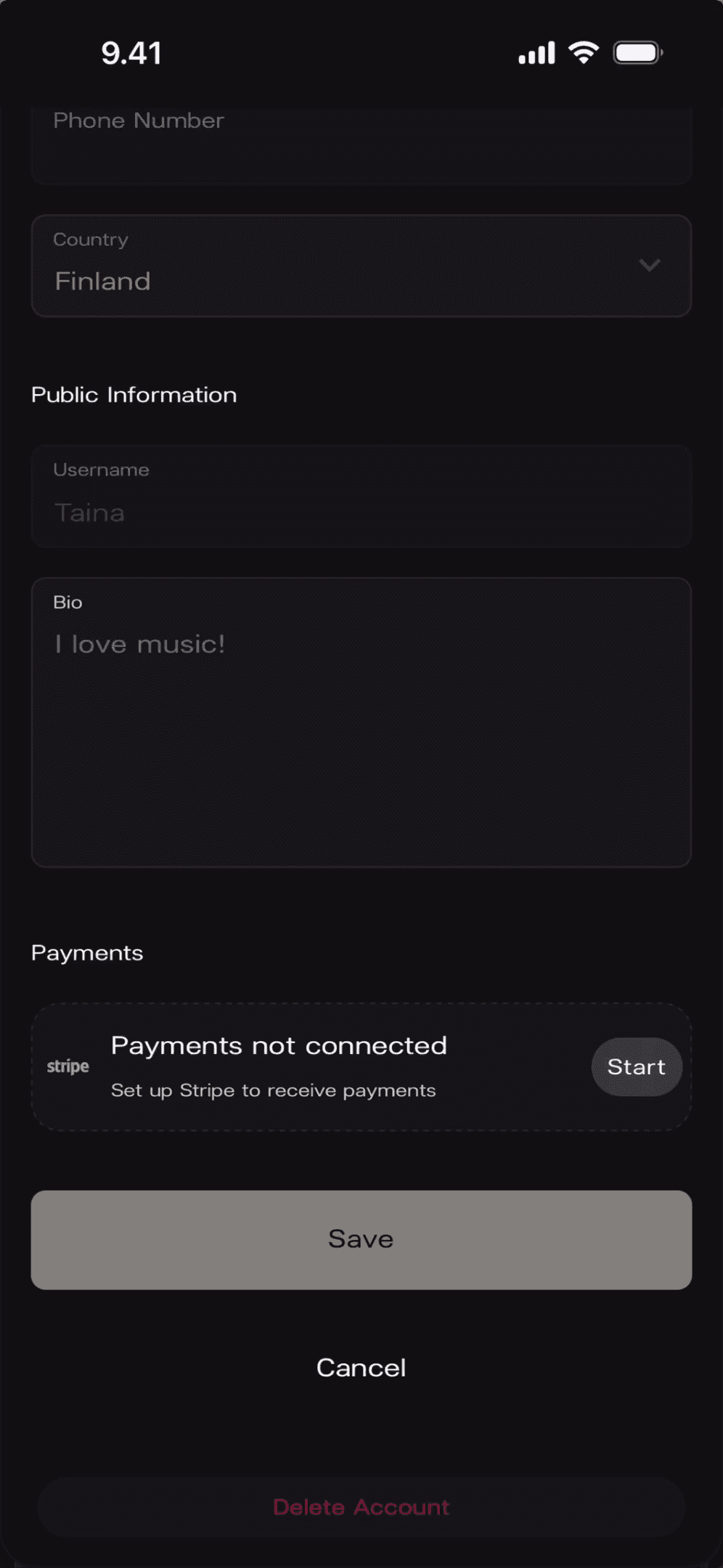
4
Save and you're done
Scroll to the bottom of the screen and tap Save. Your profile updates right away and you're taken back to the home screen.
Tap Save to apply all your changes
Tap Cancel if you want to go back without saving
4
Save and you're done
Scroll to the bottom of the screen and tap Save. Your profile updates right away and you're taken back to the home screen.
Tap Save to apply all your changes
Tap Cancel if you want to go back without saving
1
Your starting point
This is what you see when you open Kollekt. Your username and bio show at the top of the screen. To start editing, tap Edit in the top right corner.
Your username and bio are visible to other fans in the community
The Edit button sits in the top right, next to the settings icon
Tapping Edit opens your personal profile editor
2
Fill in your details
The Edit profile screen shows everything you can update. Your email is already filled in. Add your birthday, phone number, and country if you like — or leave them blank. Your username and bio are visible to other fans.
Username starts as kollekt-something — tap it to make it yours
Bio is public — a sentence or two is plenty
Birthday, phone number, and country are all optional
3
Add a profile picture
Tap the pen icon on your profile photo. A menu appears with three options. Choose Photo Library to pick from your camera roll, Take Photo to shoot a new one, or Choose File to upload an image.
Tap the pen icon on your current photo (or the empty circle if you haven't added one yet)
Choose Photo Library, Take Photo, or Choose File
Your new photo appears on your profile straight away
4
Save and you're done
Scroll to the bottom of the screen and tap Save. Your profile updates right away and you're taken back to the home screen.
Tap Save to apply all your changes
Tap Cancel if you want to go back without saving
Can I change my username later?
What does my bio look like to other fans?
Do I need to fill in my birthday and phone number?
About the project