1
Find Direct Line in the app
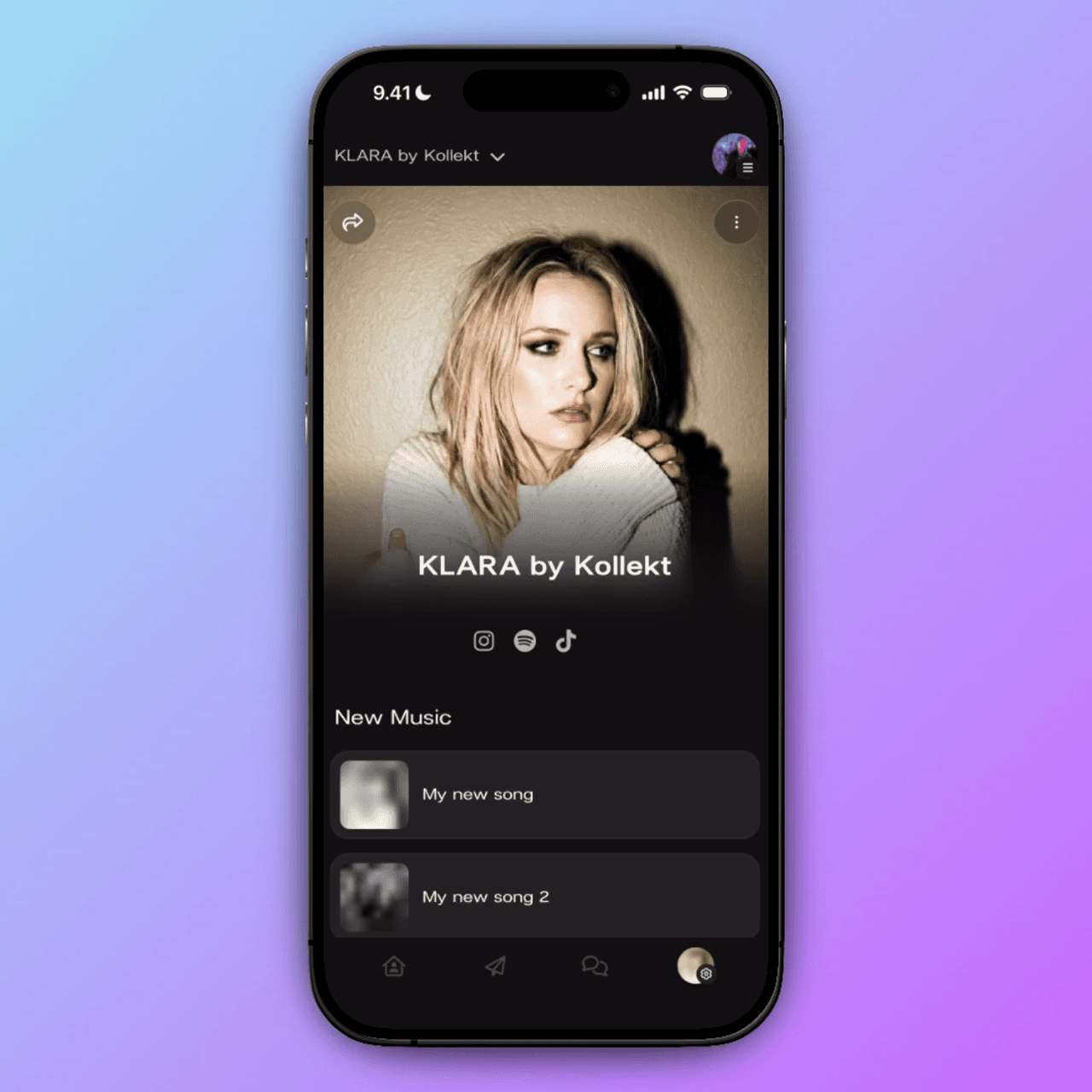
At the bottom of the screen, tap the arrow icon — that’s Direct Line. This is your one-way channel to every member of your community. Only you and your team can post here. Fans receive your messages and can react with a heart.
Direct Line is the arrow icon in the bottom navigation bar
Only you and your team can post — fans read and react
Every message reaches every member the moment you send it
1
Find Direct Line in the app
At the bottom of the screen, tap the arrow icon — that’s Direct Line. This is your one-way channel to every member of your community. Only you and your team can post here. Fans receive your messages and can react with a heart.
Direct Line is the arrow icon in the bottom navigation bar
Only you and your team can post — fans read and react
Every message reaches every member the moment you send it
2
Send a text message
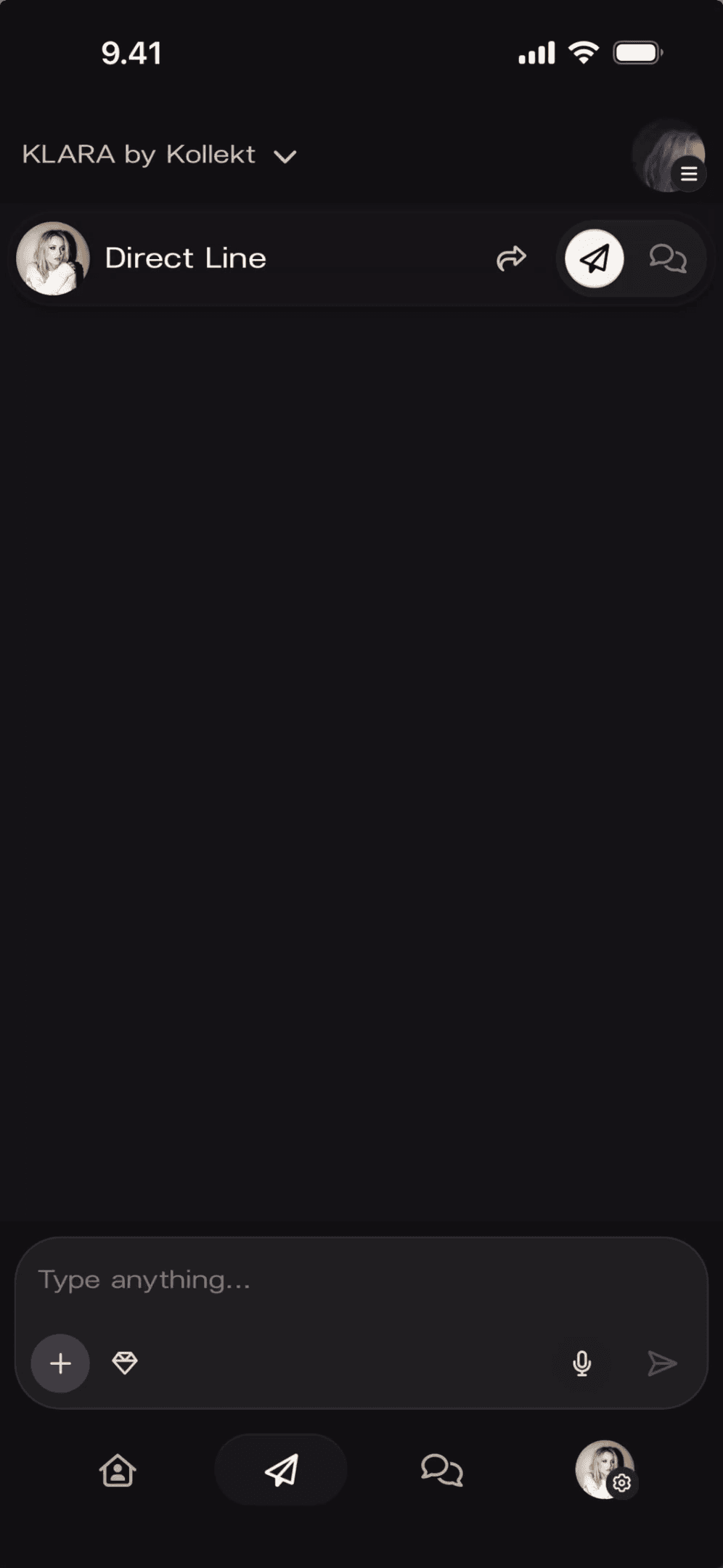
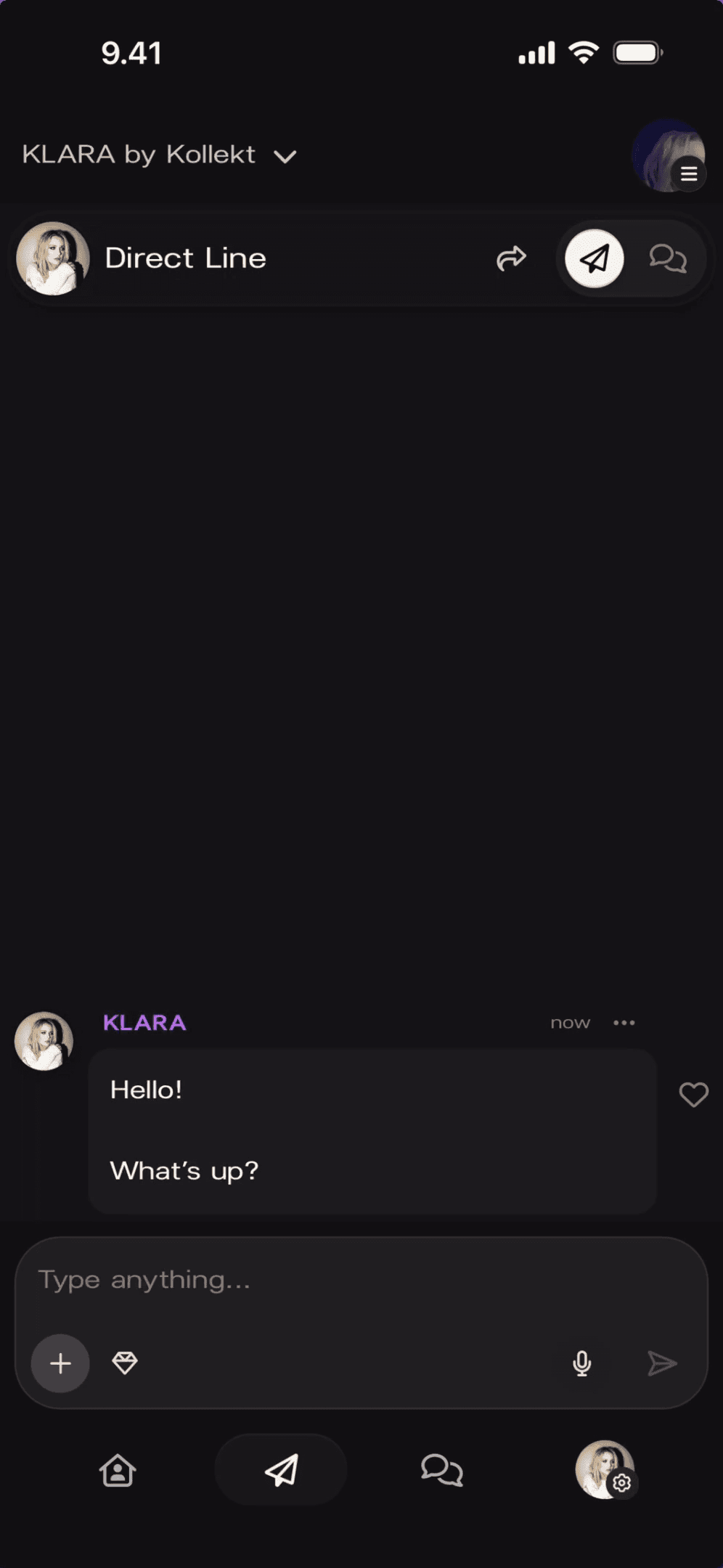
Tap “Type anything…” in the composer and write your message. Tap the white arrow on the right to send. Your message lands in every member’s Direct Line instantly — and every member gets a push notification.
Keep it casual — it should feel like a message to a group of friends
Members can tap the heart icon to react
No limit on how often you post
2
Send a text message
Tap “Type anything…” in the composer and write your message. Tap the white arrow on the right to send. Your message lands in every member’s Direct Line instantly — and every member gets a push notification.
Keep it casual — it should feel like a message to a group of friends
Members can tap the heart icon to react
No limit on how often you post
3
Send photos
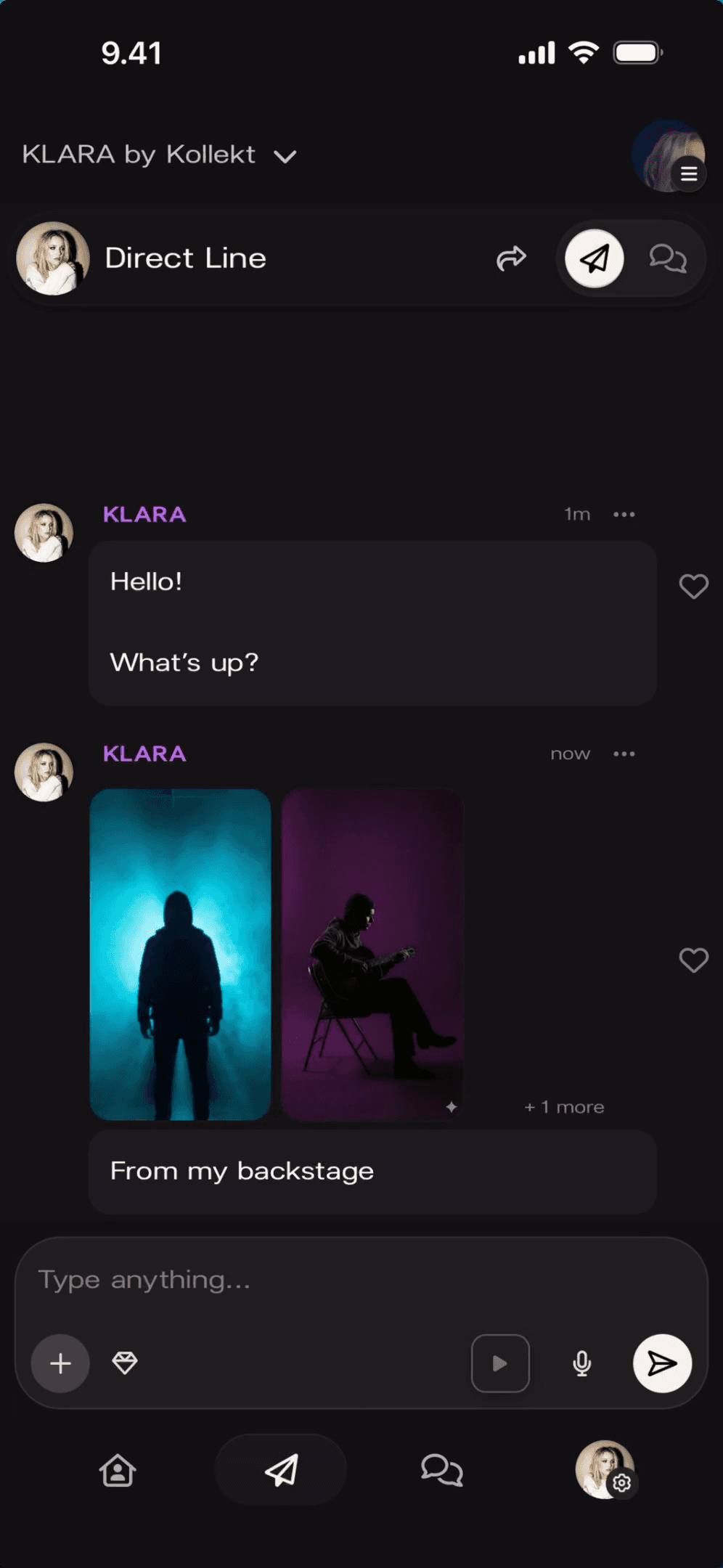
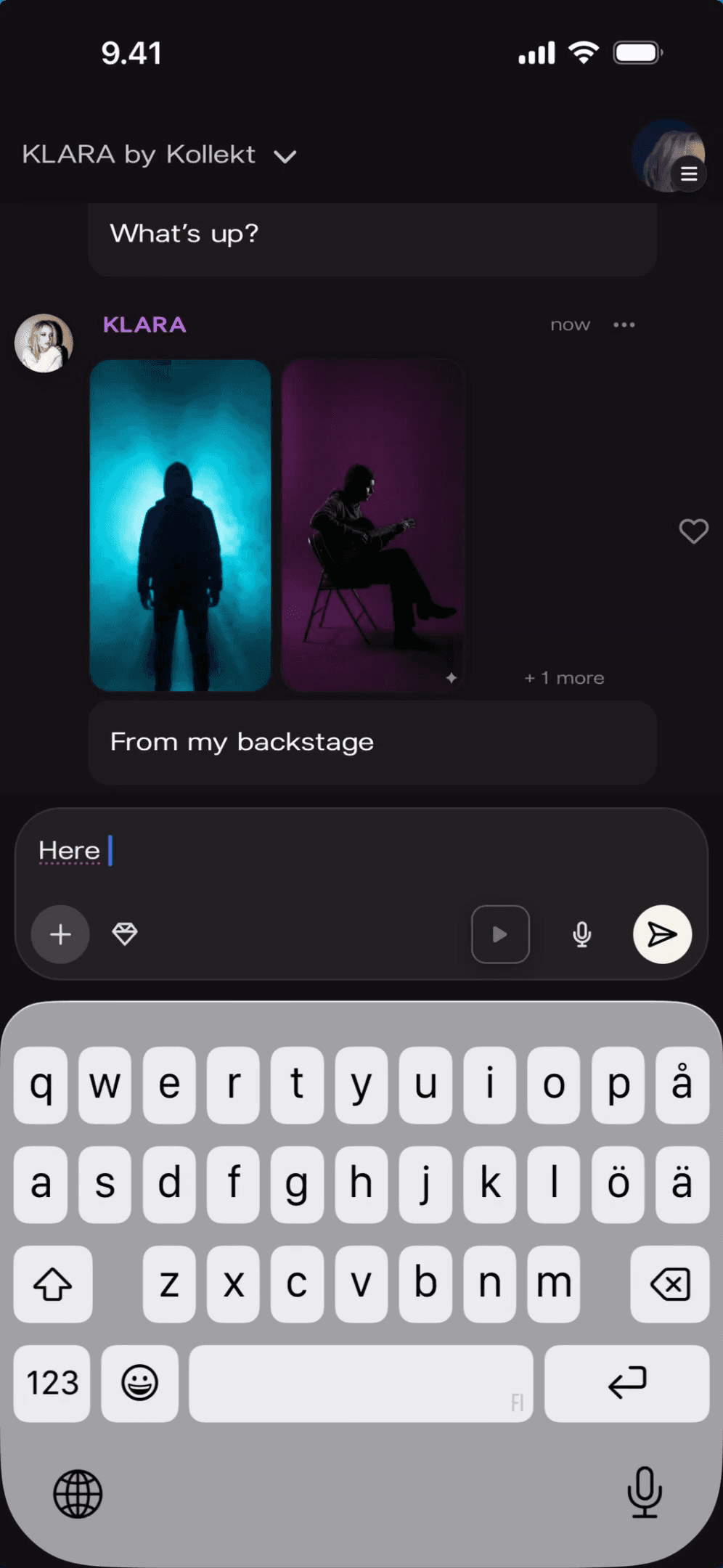
Tap the “+” button in the composer and choose Media. Select up to 3 photos from your library — they appear as a swipeable carousel in the feed. Add a caption, then hit the arrow to send.
Tap "+" → Media → Photo Library to browse your photos
Select up to 3 photos at once — they display as a swipeable carousel
Add a caption to give it context, like "From my backstage"
3
Send photos
Tap the “+” button in the composer and choose Media. Select up to 3 photos from your library — they appear as a swipeable carousel in the feed. Add a caption, then hit the arrow to send.
Tap "+" → Media → Photo Library to browse your photos
Select up to 3 photos at once — they display as a swipeable carousel
Add a caption to give it context, like "From my backstage"
4
Send a video
Tap “+” then Media to pick a video from your library — or tap Camera to shoot one on the spot. You’ll see a preview before it sends. Add a caption and tap the arrow.
Pick a video from your library or record one live with the camera
Preview the clip before you send it
Pair it with a caption — "BTS from the studio" lands well
4
Send a video
Tap “+” then Media to pick a video from your library — or tap Camera to shoot one on the spot. You’ll see a preview before it sends. Add a caption and tap the arrow.
Pick a video from your library or record one live with the camera
Preview the clip before you send it
Pair it with a caption — "BTS from the studio" lands well
5
Record a voice message
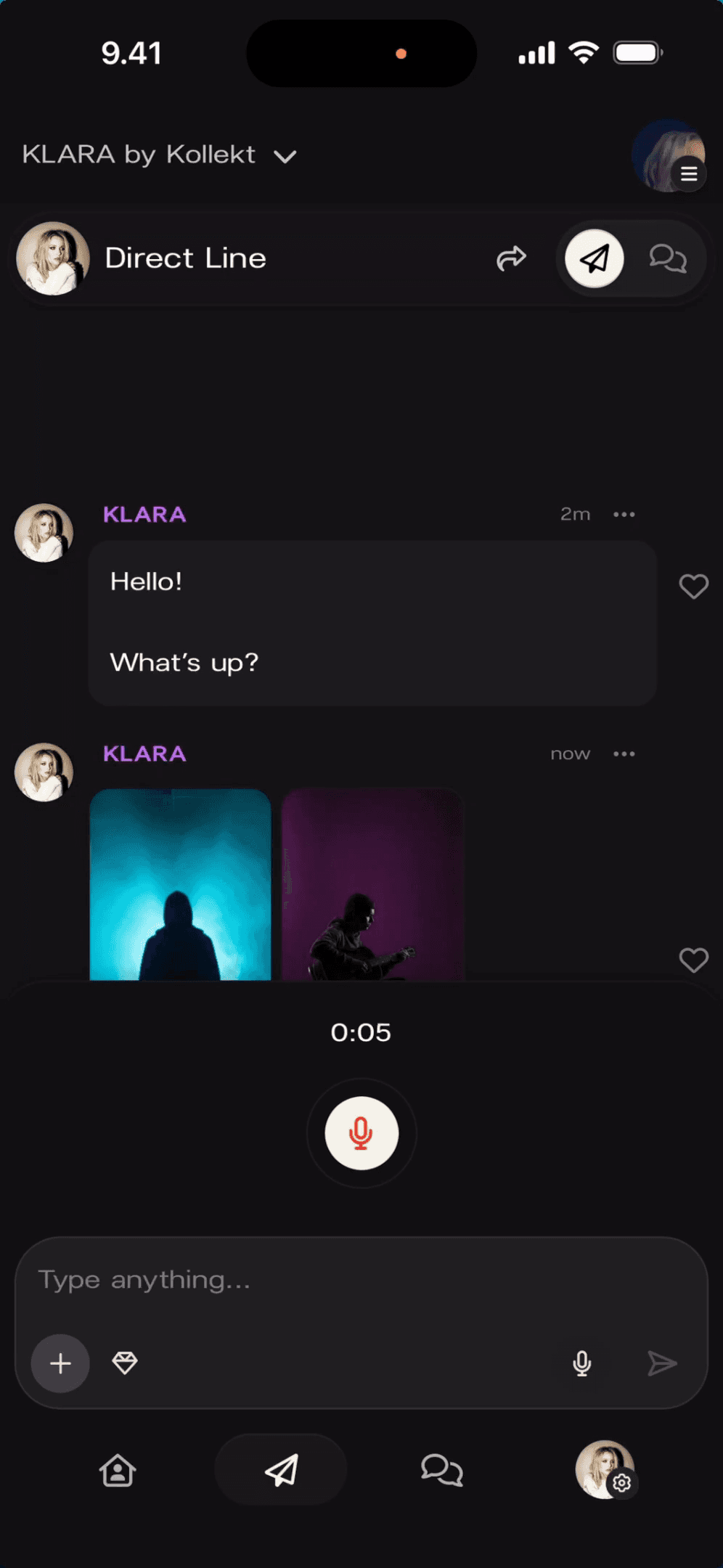
Tap the microphone icon in the composer to start recording. Tap pause when you’re done. A waveform preview appears — tap the green checkmark to confirm, or the red trash icon to delete and try again. Add a caption if you want, then send.
Tap the mic to start recording, pause to stop
Listen back before committing — tap play in the preview
Captions work well with voice: "You need to hear this!!"
5
Record a voice message
Tap the microphone icon in the composer to start recording. Tap pause when you’re done. A waveform preview appears — tap the green checkmark to confirm, or the red trash icon to delete and try again. Add a caption if you want, then send.
Tap the mic to start recording, pause to stop
Listen back before committing — tap play in the preview
Captions work well with voice: "You need to hear this!!"
6
Send a subscriber-only message
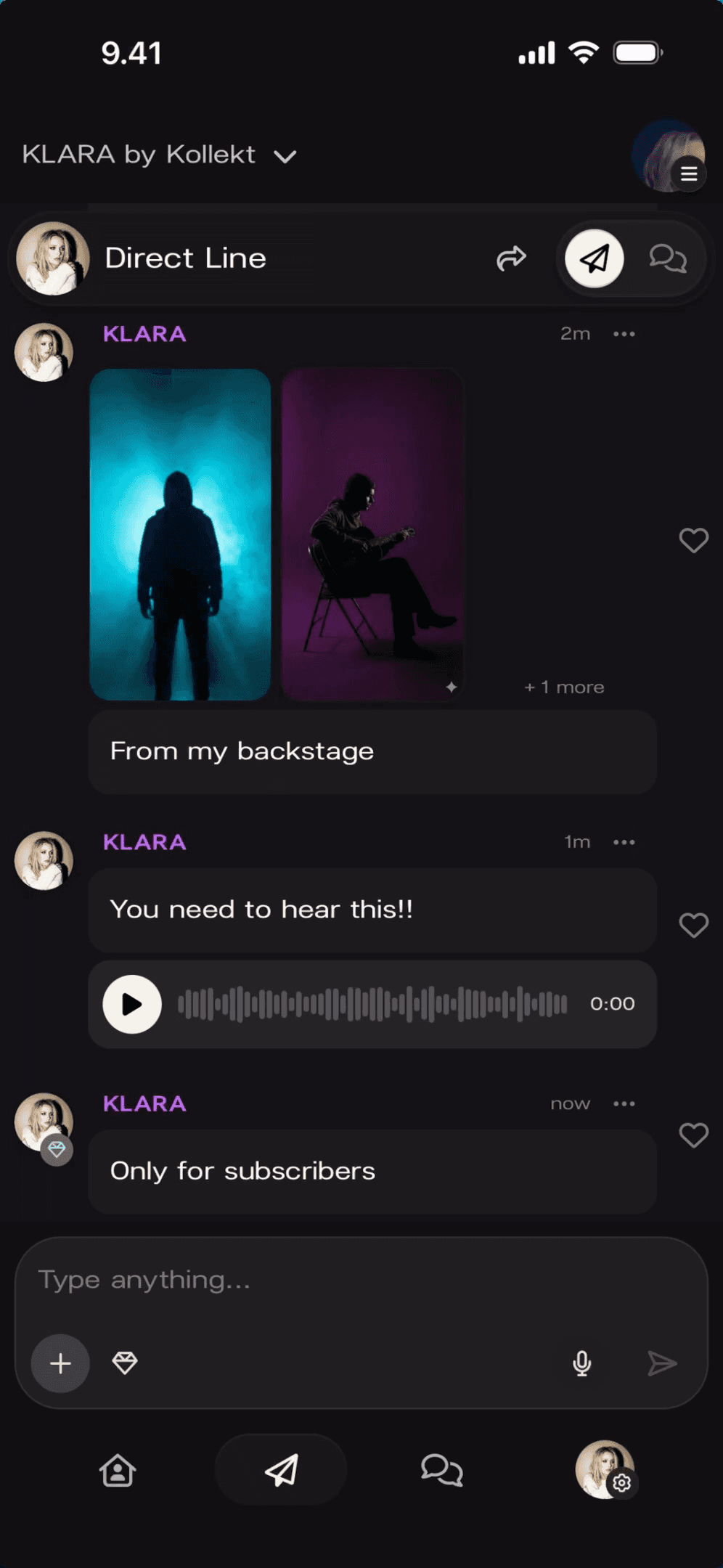
Tap the diamond icon in the composer. The text field turns blue — that’s subscriber-only mode. Write your message (or attach media) and send. Free members will see that a message exists, but the content stays locked until they subscribe.
The diamond icon toggles subscriber-only mode — the blue box confirms it’s active
Locked messages show as blurred to free members — a natural nudge to upgrade
Works with text, photos, video, and voice
6
Send a subscriber-only message
Tap the diamond icon in the composer. The text field turns blue — that’s subscriber-only mode. Write your message (or attach media) and send. Free members will see that a message exists, but the content stays locked until they subscribe.
The diamond icon toggles subscriber-only mode — the blue box confirms it’s active
Locked messages show as blurred to free members — a natural nudge to upgrade
Works with text, photos, video, and voice
7
Share your Direct Line link
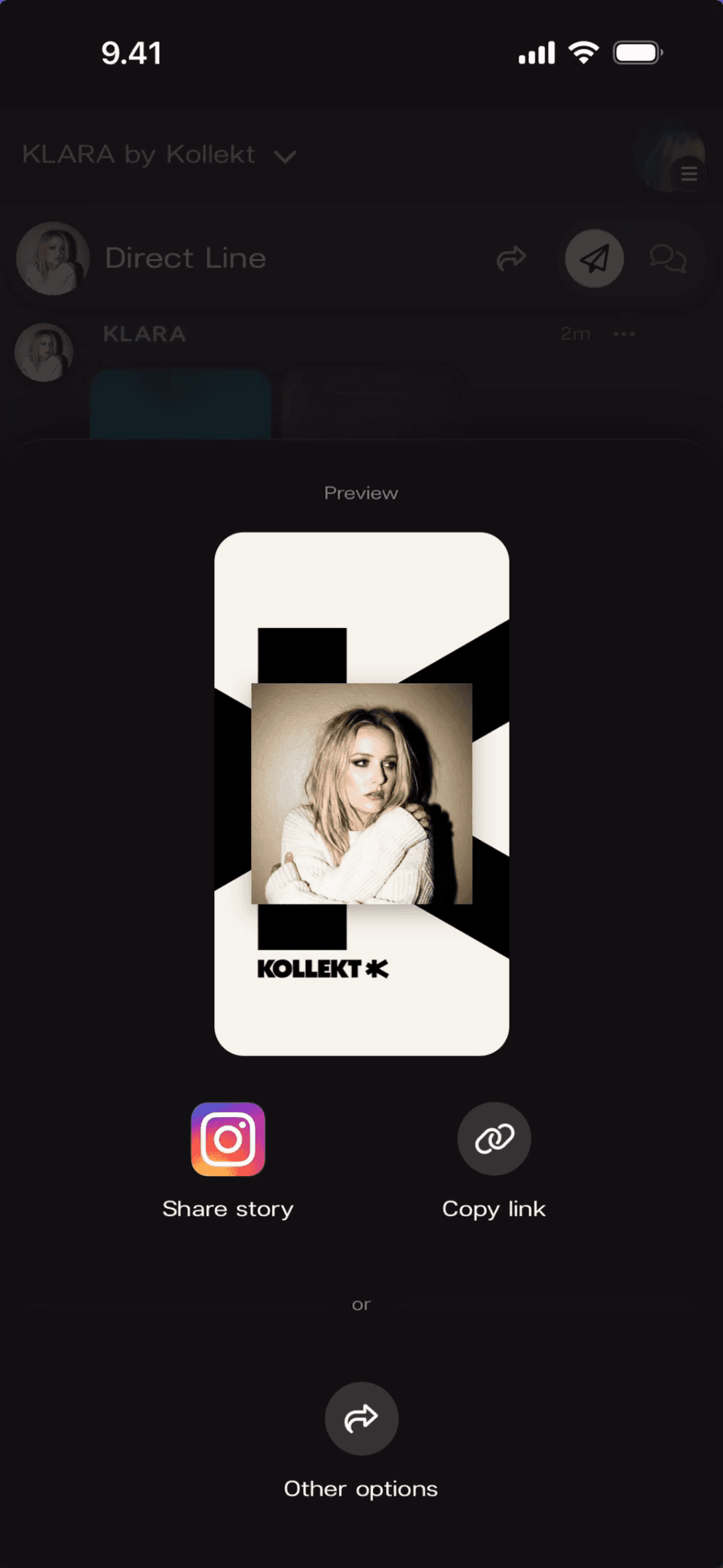
Tap the share icon at the top right of Direct Line. You’ll see a preview of your Kollekt card and three options: Share Story opens Instagram with a branded card ready to post, Copy Link copies your Direct Line URL, and Other Options opens the native share sheet.
"Share story" creates an Instagram Story card with your photo and the Kollekt logo
"Copy link" lets you paste your Direct Line URL into a bio, email, or message
The link goes directly to your Direct Line — not just your profile
7
Share your Direct Line link
Tap the share icon at the top right of Direct Line. You’ll see a preview of your Kollekt card and three options: Share Story opens Instagram with a branded card ready to post, Copy Link copies your Direct Line URL, and Other Options opens the native share sheet.
"Share story" creates an Instagram Story card with your photo and the Kollekt logo
"Copy link" lets you paste your Direct Line URL into a bio, email, or message
The link goes directly to your Direct Line — not just your profile
1
Find Direct Line in the app
At the bottom of the screen, tap the arrow icon — that’s Direct Line. This is your one-way channel to every member of your community. Only you and your team can post here. Fans receive your messages and can react with a heart.
Direct Line is the arrow icon in the bottom navigation bar
Only you and your team can post — fans read and react
Every message reaches every member the moment you send it
2
Send a text message
Tap “Type anything…” in the composer and write your message. Tap the white arrow on the right to send. Your message lands in every member’s Direct Line instantly — and every member gets a push notification.
Keep it casual — it should feel like a message to a group of friends
Members can tap the heart icon to react
No limit on how often you post
3
Send photos
Tap the “+” button in the composer and choose Media. Select up to 3 photos from your library — they appear as a swipeable carousel in the feed. Add a caption, then hit the arrow to send.
Tap "+" → Media → Photo Library to browse your photos
Select up to 3 photos at once — they display as a swipeable carousel
Add a caption to give it context, like "From my backstage"
4
Send a video
Tap “+” then Media to pick a video from your library — or tap Camera to shoot one on the spot. You’ll see a preview before it sends. Add a caption and tap the arrow.
Pick a video from your library or record one live with the camera
Preview the clip before you send it
Pair it with a caption — "BTS from the studio" lands well
5
Record a voice message
Tap the microphone icon in the composer to start recording. Tap pause when you’re done. A waveform preview appears — tap the green checkmark to confirm, or the red trash icon to delete and try again. Add a caption if you want, then send.
Tap the mic to start recording, pause to stop
Listen back before committing — tap play in the preview
Captions work well with voice: "You need to hear this!!"
6
Send a subscriber-only message
Tap the diamond icon in the composer. The text field turns blue — that’s subscriber-only mode. Write your message (or attach media) and send. Free members will see that a message exists, but the content stays locked until they subscribe.
The diamond icon toggles subscriber-only mode — the blue box confirms it’s active
Locked messages show as blurred to free members — a natural nudge to upgrade
Works with text, photos, video, and voice
7
Share your Direct Line link
Tap the share icon at the top right of Direct Line. You’ll see a preview of your Kollekt card and three options: Share Story opens Instagram with a branded card ready to post, Copy Link copies your Direct Line URL, and Other Options opens the native share sheet.
"Share story" creates an Instagram Story card with your photo and the Kollekt logo
"Copy link" lets you paste your Direct Line URL into a bio, email, or message
The link goes directly to your Direct Line — not just your profile
Who gets a push notification when I post?
Can I delete a message after sending it?
What's the difference between a regular message and a subscriber-only message?
Can my team post to Direct Line too?
How often should I post?
About the project