Step by step
Open your artist page
1
Open your page and start editing
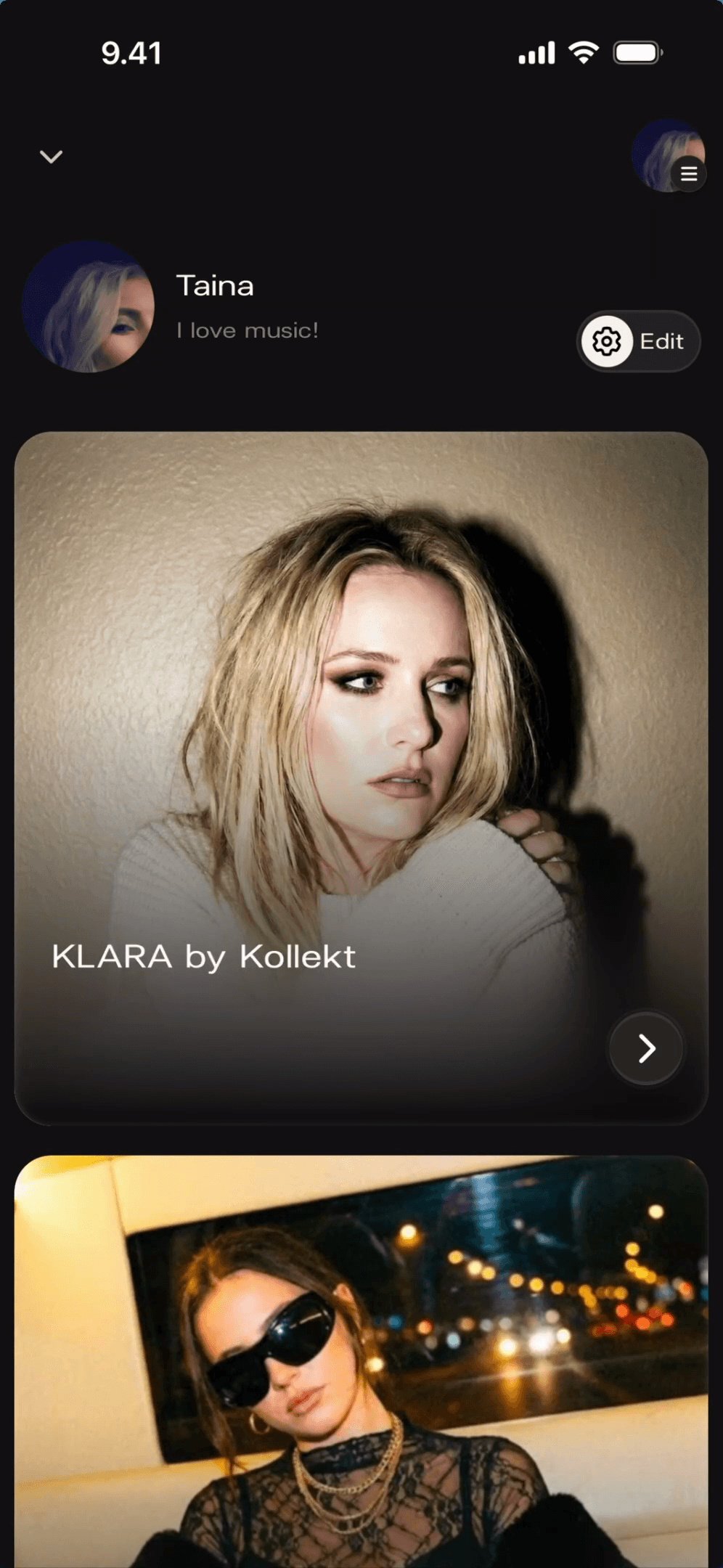
Head to your Artist Page and tap the admin menu (⋮) in the top right, then tap Edit Artist Page. You’ll see your cover photo, name, and links — all in one place, ready to customize.
Your page was built from your Spotify data. Cover photo, name, and socials are already there.
You need admin access. If you haven't claimed your page yet, do that first.
Everything stays in draft until you hit Save in the top right
Open your artist page
1
Open your page and start editing
Head to your Artist Page and tap the admin menu (⋮) in the top right, then tap Edit Artist Page. You’ll see your cover photo, name, and links — all in one place, ready to customize.
Your page was built from your Spotify data. Cover photo, name, and socials are already there.
You need admin access. If you haven't claimed your page yet, do that first.
Everything stays in draft until you hit Save in the top right

Update your cover photo
2
Set your cover photo and artist name
Tap the pencil icon on the cover photo to upload a new image, or tap the pencil next to your name to change it. This is the first thing fans see, so make it feel like you.
Choose from your photo library, take a new photo, or upload a file
Pick something recognizable — a press shot, album cover, or live moment
Your name auto-fills from Spotify but you can change it anytime
Update your cover photo
2
Set your cover photo and artist name
Tap the pencil icon on the cover photo to upload a new image, or tap the pencil next to your name to change it. This is the first thing fans see, so make it feel like you.
Choose from your photo library, take a new photo, or upload a file
Pick something recognizable — a press shot, album cover, or live moment
Your name auto-fills from Spotify but you can change it anytime
3
Add your social links so fans can find you everywhere
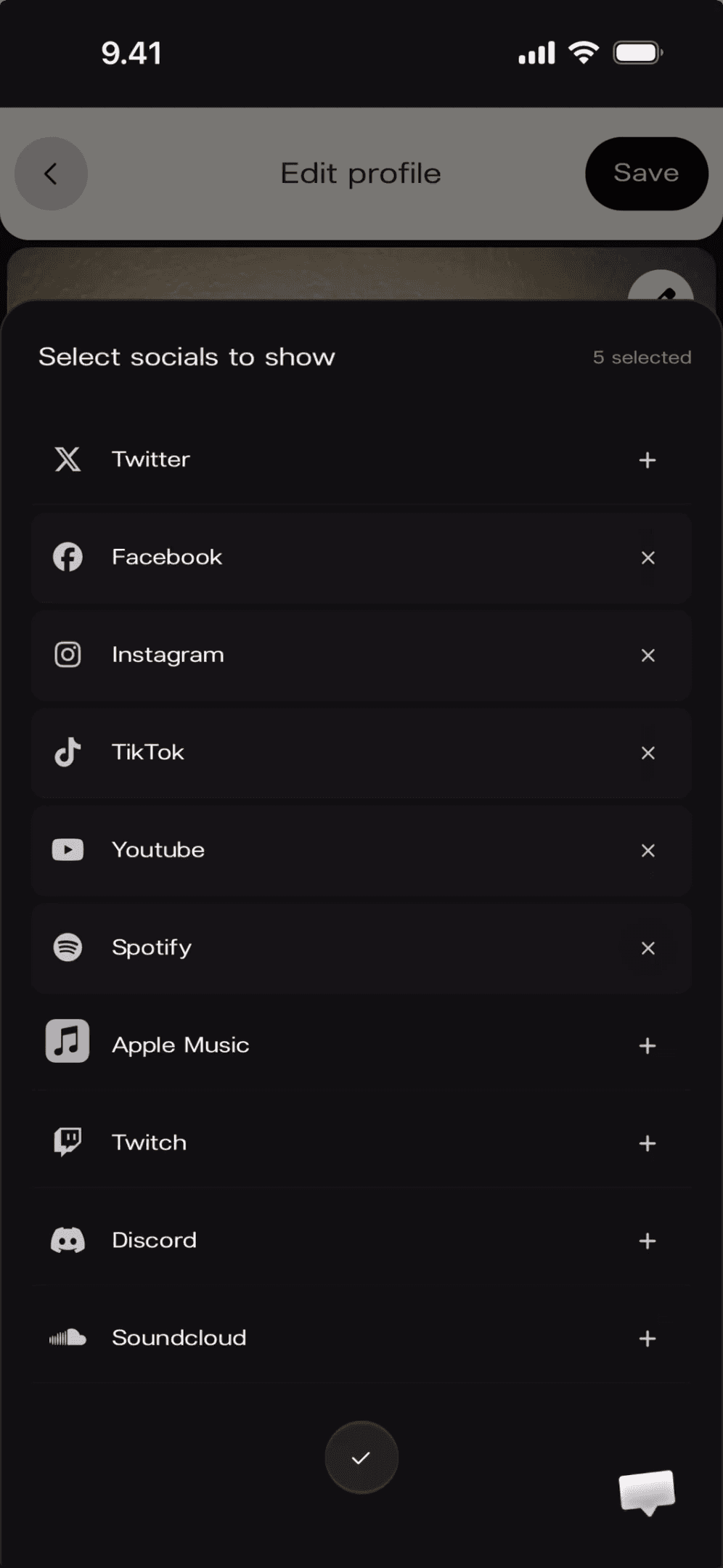
Tap the + icon next to your social icons to add more platforms. Kollekt validates each URL so fans always land in the right place.
10 platforms supported: Instagram, TikTok, Spotify, YouTube, Facebook, Apple Music, X, Twitch, Discord, SoundCloud
Icons appear on your page in the order you add them
If a URL doesn’t match the platform format, you’ll see a red warning before saving
3
Add your social links so fans can find you everywhere
Tap the + icon next to your social icons to add more platforms. Kollekt validates each URL so fans always land in the right place.
10 platforms supported: Instagram, TikTok, Spotify, YouTube, Facebook, Apple Music, X, Twitch, Discord, SoundCloud
Icons appear on your page in the order you add them
If a URL doesn’t match the platform format, you’ll see a red warning before saving
4
Build link sections for merch, tickets, and everything else
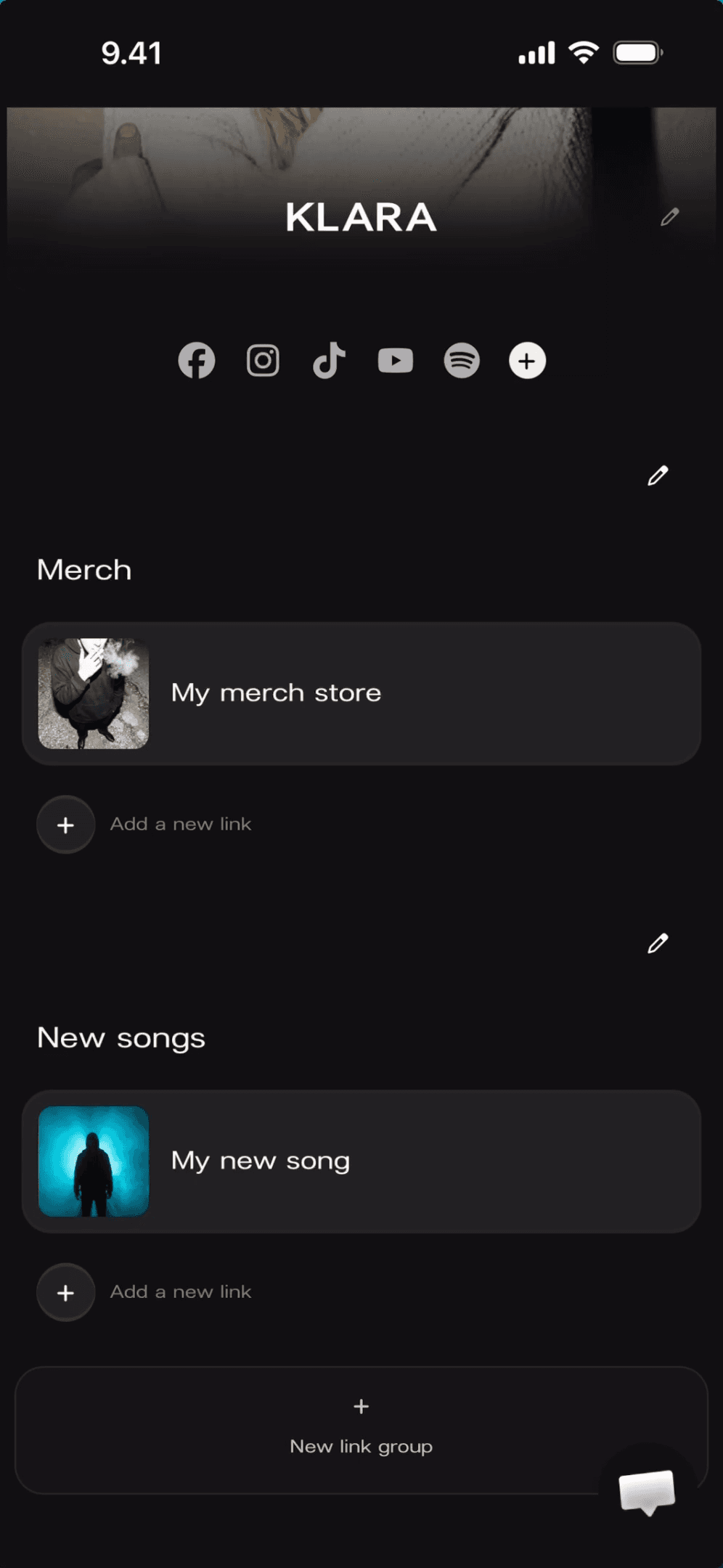
Tap + New link group to create a section with a title, optional description, and links. Each link can have a name, URL, and image thumbnail — perfect for merch, tickets, or new releases. Hit Save when you’re done.
Add as many link groups and links as you need. There's no limit.
Upload a thumbnail image for each link to make it stand out on your page
Changes go live instantly after saving. No approval needed.
4
Build link sections for merch, tickets, and everything else
Tap + New link group to create a section with a title, optional description, and links. Each link can have a name, URL, and image thumbnail — perfect for merch, tickets, or new releases. Hit Save when you’re done.
Add as many link groups and links as you need. There's no limit.
Upload a thumbnail image for each link to make it stand out on your page
Changes go live instantly after saving. No approval needed.
Open your artist page
1
Open your page and start editing
Head to your Artist Page and tap the admin menu (⋮) in the top right, then tap Edit Artist Page. You’ll see your cover photo, name, and links — all in one place, ready to customize.
Your page was built from your Spotify data. Cover photo, name, and socials are already there.
You need admin access. If you haven't claimed your page yet, do that first.
Everything stays in draft until you hit Save in the top right
Update your cover photo
2
Set your cover photo and artist name
Tap the pencil icon on the cover photo to upload a new image, or tap the pencil next to your name to change it. This is the first thing fans see, so make it feel like you.
Choose from your photo library, take a new photo, or upload a file
Pick something recognizable — a press shot, album cover, or live moment
Your name auto-fills from Spotify but you can change it anytime
3
Add your social links so fans can find you everywhere
Tap the + icon next to your social icons to add more platforms. Kollekt validates each URL so fans always land in the right place.
10 platforms supported: Instagram, TikTok, Spotify, YouTube, Facebook, Apple Music, X, Twitch, Discord, SoundCloud
Icons appear on your page in the order you add them
If a URL doesn’t match the platform format, you’ll see a red warning before saving
4
Build link sections for merch, tickets, and everything else
Tap + New link group to create a section with a title, optional description, and links. Each link can have a name, URL, and image thumbnail — perfect for merch, tickets, or new releases. Hit Save when you’re done.
Add as many link groups and links as you need. There's no limit.
Upload a thumbnail image for each link to make it stand out on your page
Changes go live instantly after saving. No approval needed.