Edit Your Artist Profile in 2 Minutes. Here's Everything You Can Change.
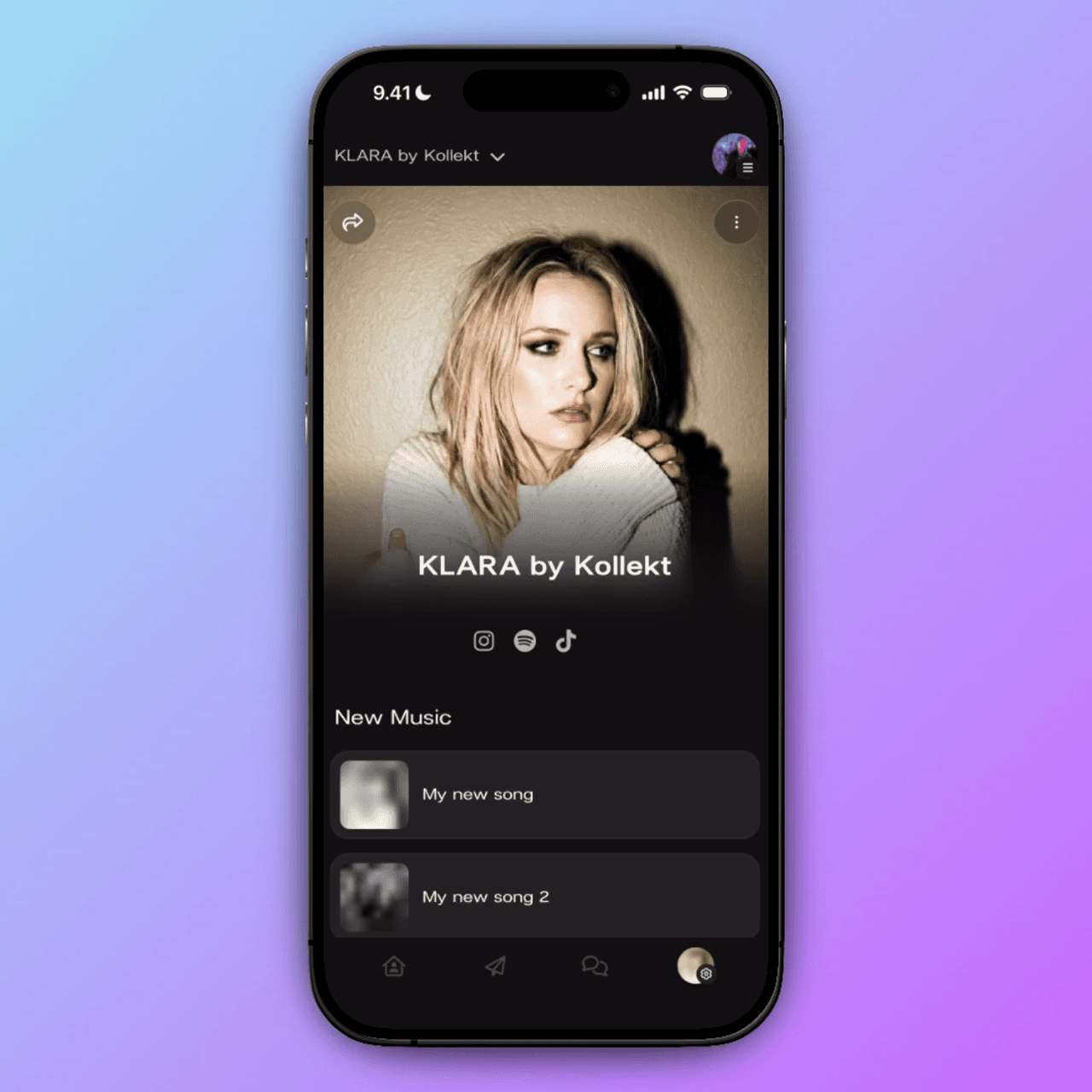
Your Home profile is the first thing fans see when they visit your Kollekt page. A complete profile builds trust and makes fans want to stick around. Here's how to set yours up — step by step.
How To
1
Open Edit Profile
From your Home tab, tap the three-dot menu on your cover image. You'll see your Members and Subscribers count, plus two options. Tap Edit Artist Profile to open the full editing screen.
Tap the three-dot menu (⋮) on your cover image to see Members count, Subscribers count, and the Edit Profile option
The Edit profile screen has a back arrow and Save button at the top — everything below is editable
Four things you can change: cover image, artist name, social links, and link sections — all from one screen
1
Open Edit Profile
From your Home tab, tap the three-dot menu on your cover image. You'll see your Members and Subscribers count, plus two options. Tap Edit Artist Profile to open the full editing screen.
Tap the three-dot menu (⋮) on your cover image to see Members count, Subscribers count, and the Edit Profile option
The Edit profile screen has a back arrow and Save button at the top — everything below is editable
Four things you can change: cover image, artist name, social links, and link sections — all from one screen

2
Update your cover image and name
Tap the pencil icon on your cover image to upload a new photo. Then tap the pencil next to your artist name to type a new one. Hit the checkmark to confirm each change.
Tap the pencil icon on your cover image to upload a new photo — use a high-quality portrait or press photo
Your cover image takes up the top half of your profile — it's the first impression fans get, so make it count
Tap the pencil next to your artist name, type your new name, and tap the checkmark to confirm
2
Update your cover image and name
Tap the pencil icon on your cover image to upload a new photo. Then tap the pencil next to your artist name to type a new one. Hit the checkmark to confirm each change.
Tap the pencil icon on your cover image to upload a new photo — use a high-quality portrait or press photo
Your cover image takes up the top half of your profile — it's the first impression fans get, so make it count
Tap the pencil next to your artist name, type your new name, and tap the checkmark to confirm
3
Connect your social platforms
Tap the + button in the social icons row to open the platform picker. Toggle platforms on or off, tap the checkmark, then paste your profile URLs in the fields that appear.
Tap the + button in your social icons row to open the platform picker — Instagram, TikTok, Spotify, and more
Toggle platforms on or off with one tap — the counter shows how many you've selected — then tap the checkmark
After adding a platform, a URL field appears — paste your profile link and tap the icon to switch between platforms
3
Connect your social platforms
Tap the + button in the social icons row to open the platform picker. Toggle platforms on or off, tap the checkmark, then paste your profile URLs in the fields that appear.
Tap the + button in your social icons row to open the platform picker — Instagram, TikTok, Spotify, and more
Toggle platforms on or off with one tap — the counter shows how many you've selected — then tap the checkmark
After adding a platform, a URL field appears — paste your profile link and tap the icon to switch between platforms
4
Organize your link sections
Your profile has link sections — New Music, My Merch, My Gigs. Tap the pencil to edit any section. Expand a link to change its thumbnail, title, and URL. Add new links or create new groups.
Tap the pencil next to any section name to edit its title, description, and the links inside it
Expand any link to change its thumbnail, title, and URL — use the arrows to reorder and the trash icon to delete
Tap “+ Add a new link” in any section or “+ New link group” at the bottom to organize tours, collabs, or press
4
Organize your link sections
Your profile has link sections — New Music, My Merch, My Gigs. Tap the pencil to edit any section. Expand a link to change its thumbnail, title, and URL. Add new links or create new groups.
Tap the pencil next to any section name to edit its title, description, and the links inside it
Expand any link to change its thumbnail, title, and URL — use the arrows to reorder and the trash icon to delete
Tap “+ Add a new link” in any section or “+ New link group” at the bottom to organize tours, collabs, or press
5
Save and see it live
When you're happy with everything, scroll to the top and tap Save. Your changes go live immediately — fans see the updated profile the moment you save.
Tap Save in the top-right corner — your changes go live immediately and fans see them right away
Your profile works like a link hub — fans access it at kollekt.io/YourName — put it in your bio everywhere
Keep it fresh — update your links when you release music, announce gigs, or drop merch. Active profile, active fans.
5
Save and see it live
When you're happy with everything, scroll to the top and tap Save. Your changes go live immediately — fans see the updated profile the moment you save.
Tap Save in the top-right corner — your changes go live immediately and fans see them right away
Your profile works like a link hub — fans access it at kollekt.io/YourName — put it in your bio everywhere
Keep it fresh — update your links when you release music, announce gigs, or drop merch. Active profile, active fans.
1
Open Edit Profile
From your Home tab, tap the three-dot menu on your cover image. You'll see your Members and Subscribers count, plus two options. Tap Edit Artist Profile to open the full editing screen.
Tap the three-dot menu (⋮) on your cover image to see Members count, Subscribers count, and the Edit Profile option
The Edit profile screen has a back arrow and Save button at the top — everything below is editable
Four things you can change: cover image, artist name, social links, and link sections — all from one screen
2
Update your cover image and name
Tap the pencil icon on your cover image to upload a new photo. Then tap the pencil next to your artist name to type a new one. Hit the checkmark to confirm each change.
Tap the pencil icon on your cover image to upload a new photo — use a high-quality portrait or press photo
Your cover image takes up the top half of your profile — it's the first impression fans get, so make it count
Tap the pencil next to your artist name, type your new name, and tap the checkmark to confirm
3
Connect your social platforms
Tap the + button in the social icons row to open the platform picker. Toggle platforms on or off, tap the checkmark, then paste your profile URLs in the fields that appear.
Tap the + button in your social icons row to open the platform picker — Instagram, TikTok, Spotify, and more
Toggle platforms on or off with one tap — the counter shows how many you've selected — then tap the checkmark
After adding a platform, a URL field appears — paste your profile link and tap the icon to switch between platforms
4
Organize your link sections
Your profile has link sections — New Music, My Merch, My Gigs. Tap the pencil to edit any section. Expand a link to change its thumbnail, title, and URL. Add new links or create new groups.
Tap the pencil next to any section name to edit its title, description, and the links inside it
Expand any link to change its thumbnail, title, and URL — use the arrows to reorder and the trash icon to delete
Tap “+ Add a new link” in any section or “+ New link group” at the bottom to organize tours, collabs, or press
5
Save and see it live
When you're happy with everything, scroll to the top and tap Save. Your changes go live immediately — fans see the updated profile the moment you save.
Tap Save in the top-right corner — your changes go live immediately and fans see them right away
Your profile works like a link hub — fans access it at kollekt.io/YourName — put it in your bio everywhere
Keep it fresh — update your links when you release music, announce gigs, or drop merch. Active profile, active fans.
Quick Start
Your profile is your digital front door. Set it up once, update it whenever you release something new.
Your profile goes live at kollekt.io/YourName the moment you save — no waiting for approval
Connect up to 10 social platforms so fans can find you everywhere — from Instagram to SoundCloud
Organize links into groups — music, merch, gigs, tours — whatever matters most to your fans
Free forever. Takes 2 minutes.
Free forever. Takes 2 minutes.
Free forever. Takes 2 minutes.
Can I change my artist name after setting it up?
What image size works best for the cover photo?
Do I need to update my social links if I change my username on another platform?
View more